Speed to lead: turning a form fill into a phone call
Speed to lead is how fast you contact a new lead after it arrives. A lead is a consumer you plan to contact, usually someone who filled in a web form.
Lead to call automation keeps that time short. Software runs the steps you set: texts, emails and calls. It then connects the answered call to a buyer, the business that takes and pays for calls.
In TrackDrive, a schedule does this work. A schedule is an ordered list of actions you build, and it runs on each lead that enters it. TrackDrive's default schedule texts, then calls.
Why the first contact shouldn't wait in a pile
A form fill tells you someone wants to talk. If a team works leads from a list, each lead waits until someone reaches its row.
A schedule starts on each lead as it enters. Each lead then moves through the steps on its own clock, at its own next-action time.
This page doesn't promise a response-time figure. How fast is fast enough depends on your leads and your buyers. The dashboard, covered below, shows what your own schedules produce.
If every consumer calls you, inbound routing does the job and you don't need a schedule. A schedule earns its place when leads arrive as forms or lists, and your buyers want calls.
The four ways a lead gets in
Leads come in through the API, a CSV upload, a ping-post integration or an inbound call. The lead sources guide covers each one.
-
The leads API. A web form, landing page or CRM sends each lead as it's submitted. The request needs a lead token,
the key that tells TrackDrive which schedule or offer the lead joins. It also needs the phone number, sent as
caller_id. -
A CSV upload. This is the batch path, for a purchased list or a dormant audience you want to reach again. The
phone column must be named
caller_id. The import can scrub out leads you've already worked, such as ones a buyer was connected to. - Ping-post. A lead provider sends part of a lead, and TrackDrive responds with a bid. The provider then posts the full lead. What is ping-post explains the exchange.
- An inbound call. A call can create a lead by itself. The caller's number and attribution data carry onto it, and the lead enters its schedule.
Any extra field you send with a lead becomes a token: a named piece of lead data, such as a loan amount. Later steps can use it. The lead API guide has examples.
Send a traffic source ID and a sub ID with each lead, too. A sub ID is a free-form tag for one affiliate or creative. When the lead produces a call or a conversion, both roll up into the source breakdowns in reporting.
If your forms are on Typeform, the Typeform integration sends each completed form to TrackDrive with zero coding.
What a schedule is, in TrackDrive's terms
Every schedule is tied to one offer. An offer is the campaign a call belongs to. The schedule routes its outbound calls through that offer's call flow and buyers.
A schedule has one of two types:
- Contact caller. It dials or messages the consumer.
- Lead distribution. It sends the lead to other systems, such as webhooks and CRM posts, without necessarily calling the consumer.
The type can't be changed after the schedule is created.
A lead follows one schedule at a time. A trigger can move it to another, but the move replaces the old schedule's progress.
The steps a schedule can run
Each step is an action. TrackDrive's lead automation page lists these:
- Call. Places an outbound call to the lead using the offer's IVR. An IVR, or interactive voice response, is a recorded menu the caller answers with key presses.
- SMS. Sends a text with token-replaced content, so it can use the lead's own details. The schedule needs SMS turned on first.
- Email. Sends an email through your connected email integration.
- Wait. Pauses for a set time before the next step: seconds, minutes, hours or days.
- Webhook. Fires an HTTP request to a URL you set in an external system.
- Add to schedule. Moves the lead into another schedule.
- Update field. Changes values on the lead, such as an attempt count.
- Conditional. Exits the schedule based on the lead's token values or an expression.
The schedule actions guide lists more, including a scheduled callback, a restart, an opt-out and a block.
One lead to call schedule, step by step
Here is one example, with invented timings. You set your own.
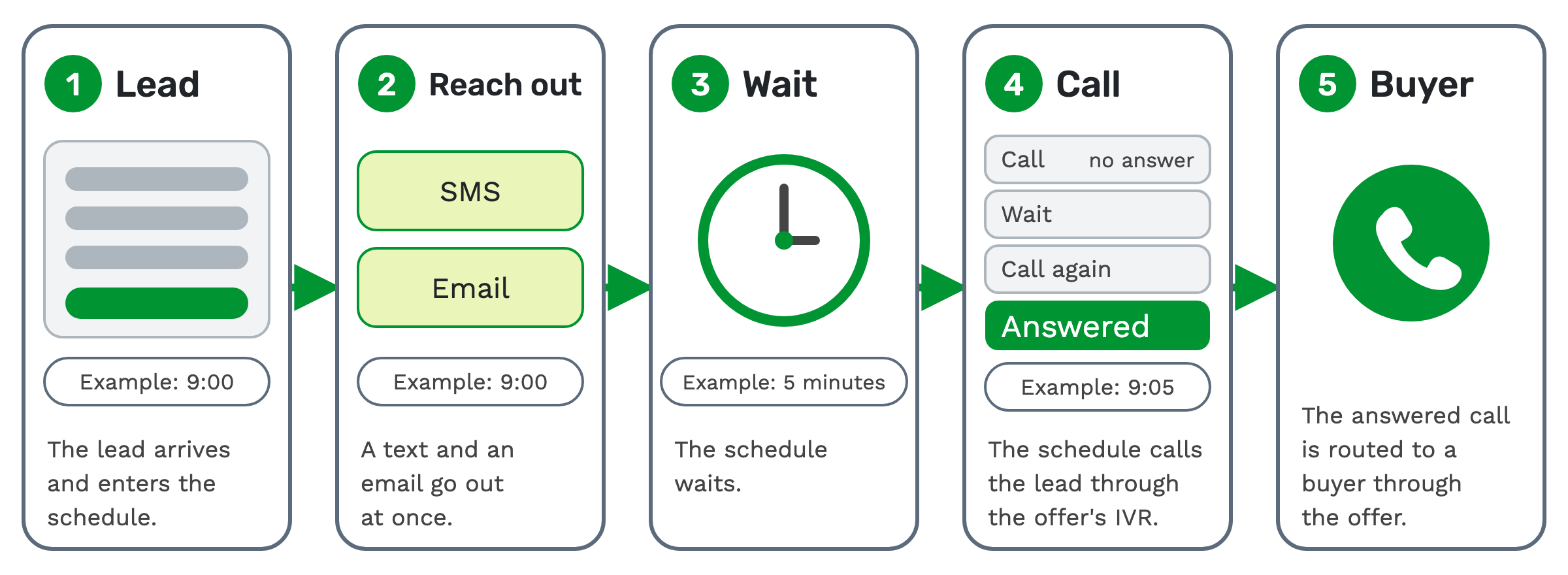
1. The lead arrives. A web form sends it through the API, and it enters the schedule. Example: 9:00.
2. A text and an email go out. The text can greet the lead by the name on the form. Example: 9:00, at once.
3. The schedule waits. Example: 5 minutes.
4. The schedule calls the lead. The call goes out through the offer's IVR. Example: 9:05. No answer? Add another wait and call to try again.
5. The answered call goes to a buyer. Outbound calls from a schedule route through the offer's buyers, just like inbound calls. How to route inbound calls covers how the buyer is picked.
Waits that change per lead
Lead wait rules let one wait step choose a different wait for each lead.
A rule matches on the lead's tokens or its call disposition history. A disposition is the outcome an agent or the system assigns after a call, such as "not qualified" or "left a voicemail".
The help centre's example: high-priority leads might wait 5 minutes between attempts, and low-priority leads 2 hours.
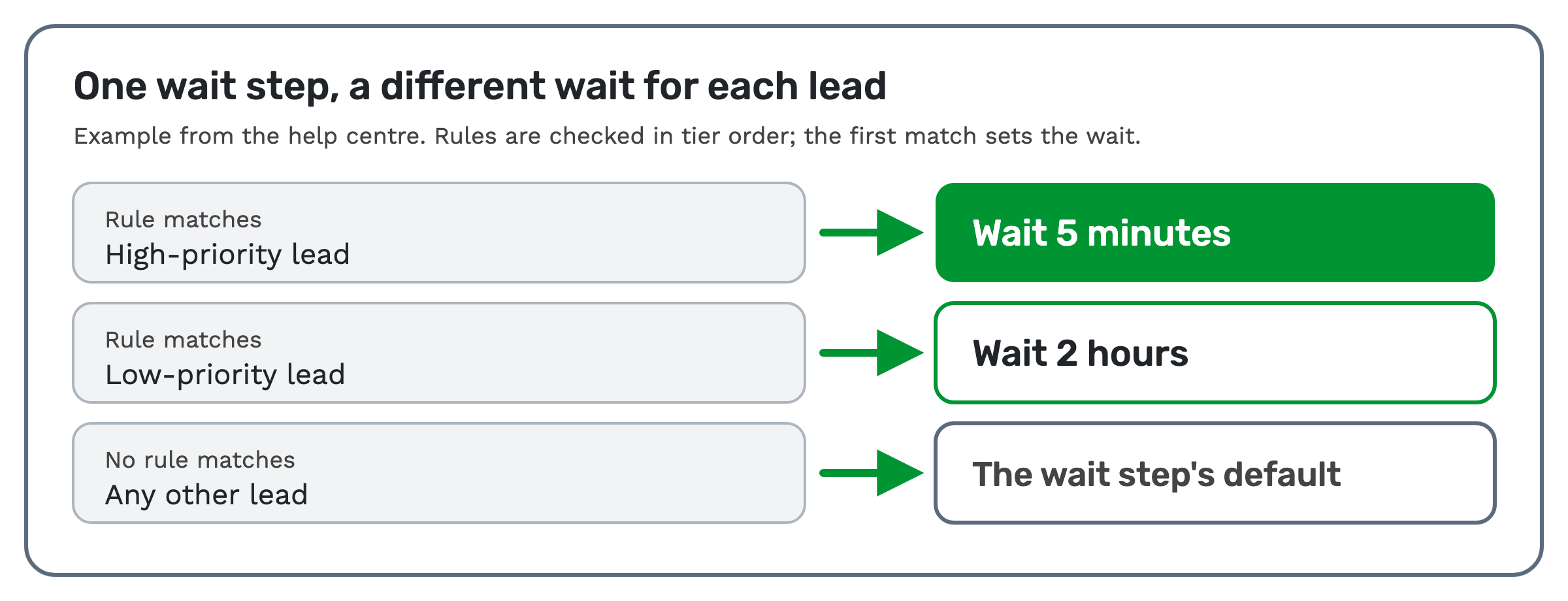 Rules are checked in tier order, lowest tier first, and the first match sets the wait. If no rule matches, the wait
step's own default applies. See the lead wait rules guide.
When a schedule starts, and when it stops
A trigger is the event that starts a schedule on a lead. There are six trigger types:
- Tokens match. The lead's tokens match a filter, such as state = CA.
- Expired. Another schedule on the lead completed or passed its expiration.
- Buyer connected or buyer converted. The lead reached a buyer, or a conversion was recorded.
- Dial. The lead was dialed, whatever the outcome.
The sixth, none, means you assign the schedule by hand. A schedule can have several triggers, and any one that fires starts it.
The schedule's end settings stop it for a lead, for example when a conversion is reached or the attempts run out. End-of-schedule actions can then run, such as a final webhook. The schedule set-up guide walks through both.
A schedule won't dial outside its hours of operation. By default, a new schedule's window runs from 8:00 AM to 8:59 PM. A schedule that was never started, or is paused, won't dial even when leads enroll.
State rules add a check on every outbound call. A dial that would break an active state rule is always blocked. Whether the lead is tried again depends on how it's being dialed.
Consent is the sender's job
Outbound dialing needs consent under the TCPA, a US law on telemarketing calls and texts. Do Not Call and curfew rules apply too. The company sending the calls is responsible for consent on every dialed lead.
TrackDrive doesn't pre-check leads against the federal Do Not Call registry, the outbound dialing FAQ says. Scrub your lists before you import them.
It does give you suppression lists, consent fields on leads and schedule hours. Inbound STOP replies opt the contact out on their own. These tools don't, on their own, guarantee compliance. This is general information, not legal advice.
Automated lead success tracking
The lead automation dashboard measures every schedule. It shows leads created, contacted, ended and converted, with revenue, payout, profit and margin.
For speed to lead, two views matter. The live queue shows the outbound dialer queue in real time, by tier and by state. Best-time heatmaps show the day-and-hour windows that create and convert the most leads.
Pay per call vs pay per lead covers the dashboard's breakdowns by offer, schedule, buyer and agent.
What it costs on TrackDrive
Each kind of step has its own rate:
- Most schedule steps have a rate per billable schedule step. That covers steps such as a webhook, email, wait or choice.
- Texts aren't billed as steps. They're billed as SMS Out, at a rate per outbound message.
- Calls a schedule dials are billed as a step too, on top of the call itself. The dial to the lead is billed as Outbound To Consumer: a per-minute rate, on call duration, at the billing increment and minimum billable duration set for your account.
Committing to a monthly amount lowers most rates. There's no onboarding fee. See TrackDrive pricing for every commit level.
Questions people ask
How does automated lead dialing work? A schedule's Call step dials the lead through the offer. If your own agents take the calls, the Power Dialer pulls ready leads from active schedules. It respects business hours and state compliance rules, then bridges each answered call to an agent.
Can a schedule call first and skip the text? Yes. The steps mix and match, so a schedule can open with a call, wait, and call again.
What happens to a lead that never answers? It keeps moving through the steps until the schedule ends for it, for example at the maximum number of contact attempts.
See it in action
Request a demo for a live walkthrough tailored to your use case, or start free, with no credit card and no onboarding fee.